2013 Ford Explorer Key Fob Programming
Updated 2026 Programming, battery & replacement fob
You can program a 2013 Ford Explorer key fob yourself in a few minutes using a working key or remote, no dealer visit needed. Follow the steps below, then check the battery and the correct replacement fob (with FCC ID and part number) if you need a new one.
Remote / key fob programming
Programming a remote on this Ford resets every remote for the vehicle, so you reprogram them all together. Try Method A first; if it doesn't work, use Method B. Don't press the brake pedal at any point.
Before you start
- Every remote you want to use with the vehicle
- Your key
Method A
If it won't enter programming mode, try the same steps with the driver's door closed.
- 1Close all doors, then open the driver's door. With it open, press Unlock on the driver's-door panel and insert the key into the ignition.
- 2Turn the ignition from OFF to RUN 8 times within 8 seconds, ending in RUN. The door locks cycle to confirm programming mode. If they don't, remove the key and start over.
- 3Within 10 seconds, press any button on the first remote. The locks cycle to confirm. If you have only one remote, skip to the last step.
- 4Within 10 seconds, press any button on the next remote; the locks cycle again. Repeat for any other remotes.
- 5Turn the ignition to OFF. The locks cycle once more to end programming mode.
Method B
- 1Fasten your seatbelt and close all doors.
- 2Turn the ignition from OFF to RUN 4 times within 3 seconds.
- 3Turn the ignition OFF. The system chimes to confirm programming mode.
- 4Within 10 seconds, press and hold any button on the first remote until you hear a chime.
- 5Within 10 seconds, press and hold any button on the next remote until it chimes.
- 6Turn the ignition to RUN to exit programming mode.
Tips & troubleshooting
- Work quickly — the steps need to be done in fast succession.
- If your Ford has push-button start, the remote is built into the smart key — use the key programming steps instead.
Key programming
This Ford comes in two ignition types — match yours. A regular key ignition uses two working keys to add a new one; push-button start uses two working smart keys. Read your method through first.
Before you start
- Two working keys (or two working smart keys for push-button start)
- Your new key, cut beforehand
Regular key ignition — with two working keys
- 1Insert one working key and turn to ON (just shy of starting) for at least one second, then back to OFF.
- 2Remove it. Within 10 seconds, insert the second working key, turn to ON for at least one second (no more than ten), then OFF and remove it.
- 3Within 20 seconds, insert the new key and turn to ON for at least one second, then back to OFF.
- 4The security light comes on for three seconds — that confirms the new key is programmed.
Push-button start (smart key)
Needs two already-programmed smart keys; up to 4 total. Engine off, all doors closed throughout. You have 30 seconds.
- 1Place the new unprogrammed smart key, buttons facing out, in the center-console pocket.
- 2Press the driver or passenger power-unlock button three times.
- 3Press and release the brake pedal once.
- 4Press the power-lock button three times.
- 5Press and release the brake pedal once. The Start/Stop button starts flashing — programming mode is active and the two working keys were detected.
- 6Within one minute, press Start/Stop. The message center confirms the new key was programmed.
- 7Take the new key out of the pocket and press Lock or Unlock to exit programming mode, then test that it locks, unlocks, and starts the vehicle.
Replacement key fobs
Find your key type below, then match the FCC ID printed on the back of your existing fob — or, for a plain transponder key, the blank code — to be sure of the right part.
Proximity Key
2 versionsStays in your pocket — the car unlocks and starts without inserting a key.
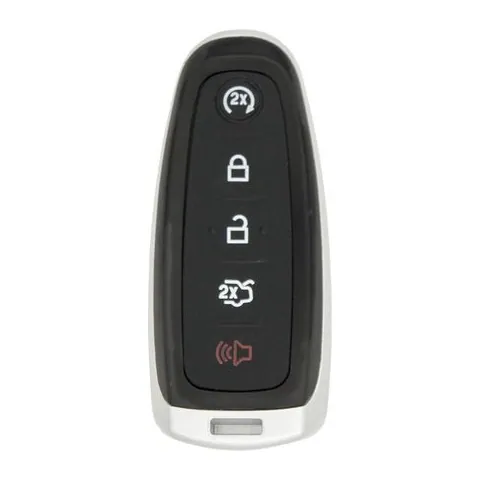
4/5-button Proximity Key
Find on Amazon- FCC ID
- M3N-5WY8609, M3N5WY8609, M3N5WY8610
- OE part #
- 164-R8091, 164-R8092, 164-R8094, 164-R8103, 5921285, 5921286 +7 more
- Frequency
- 315 MHz
- Chip
- PHILIPS ID 46
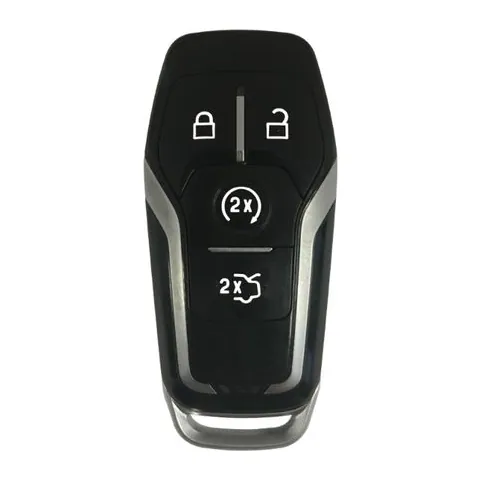
4-button Proximity Key
Find on Amazon- FCC ID
- M3N-A2C31227300
- OE part #
- 164-R7988, 5923895
- Frequency
- 868 MHz
- Chip
- NXP HITAG-PRO ID49 128 BIT
Remote Head Key
One piece: a cut metal blade with the lock/unlock buttons built into the head.
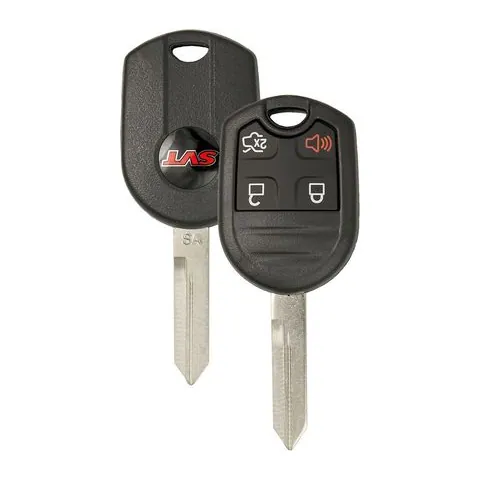
3/4/5-button Remote Head Key
Find on Amazon- FCC ID
- CWTWB1U212, CWTWB1U322, CWTWB1U331, CWTWB1U345, CWTWB1U793, CWTWBIU322, CWTWBIU331, CWTWBIU345, GQ43VT11T, OUC6000022, OUCD6000022
- OE part #
- 15K60153309140, 15K601535093529138, 164-R7996, 164-R8000, 164-R8001, 164-R8002 +55 more
- Frequency
- 315 MHz
- Chip
- TEXAS ID 4D 63 80 BIT
Transponder Key
5 versionsA cut metal key with a chip in the head. No buttons.
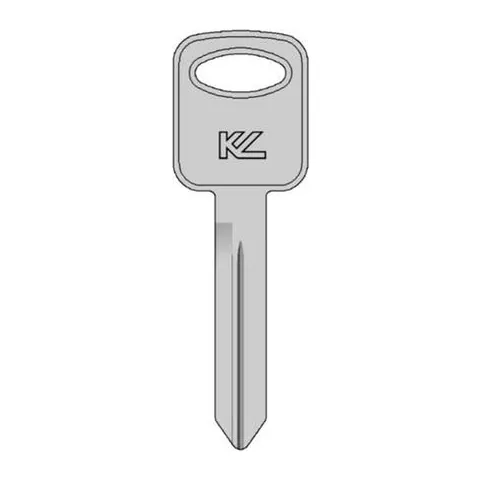
Transponder Key
Find on Amazon- Key blank
- BH75
- OE part #
- BH75
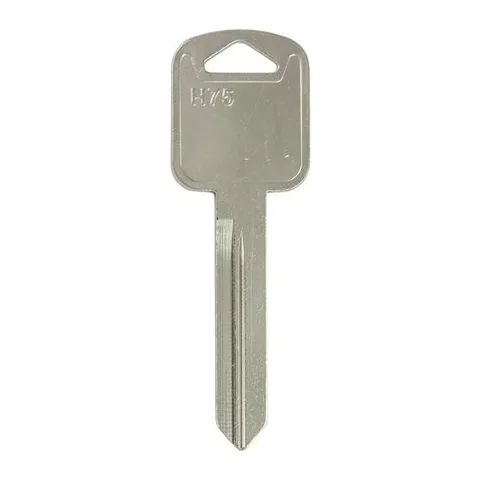
Transponder Key
Find on Amazon- Key blank
- FO25
- OE part #
- 11196FD
Transponder Key
Find on Amazon- Key blank
- AF00007290
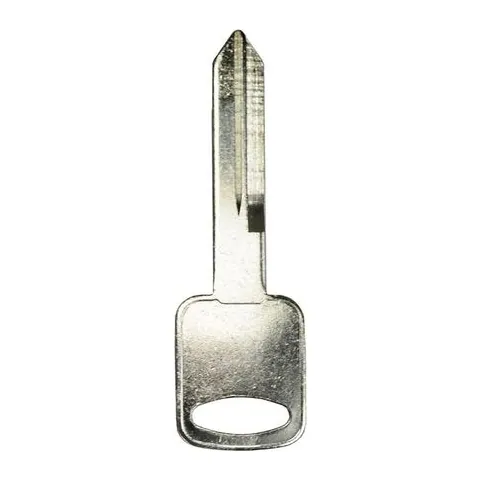
Transponder Key
Find on Amazon- Key blank
- FO-15DE
- OE part #
- JMA-H75
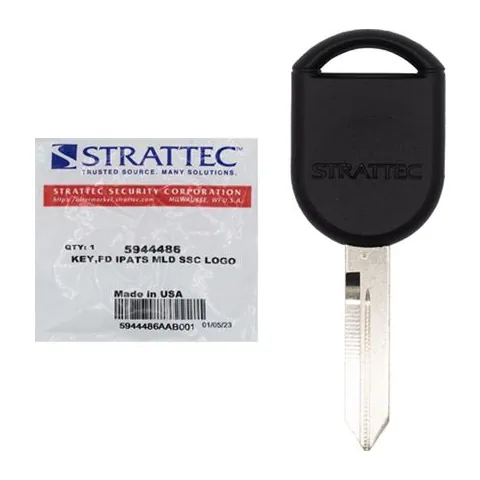
Transponder Key
Find on Amazon- Key blank
- H92PT
- OE part #
- 5944375, 5944486, H92-PT, H92PT
- Chip
- 4D-63 80-BIT
Photos show the OEM part for each number listed. Aftermarket replacements sold online are often slightly different in appearance — the FCC ID, not the shape, is what determines whether a fob will work with your car.
2013 Ford Explorer key fob battery
Your 2013 Ford Explorer key fob uses a CR2025 3V lithium coin cell. A fresh one typically lasts 3–5 years.
Find CR2025 batteries on AmazonHow to replace the battery
- 1 Slide the release latch and pull the metal emergency key out of the fob.
- 2 Use that key (or a coin) to pry the two halves apart at the seam.
- 3 Lift out the old coin cell — note which side faces up.
- 4 Drop in the new battery the same way (printed + side usually faces the back cover).
- 5 Press the case back together until it clicks, then test lock/unlock and push-to-start.
Battery tips
- Use a fresh, name-brand 3V lithium cell — bargain cells drain quickly.
- Even with a dead fob battery you can usually still start the car by holding the fob against the start button — check your owner's manual.
- If the fob still won't work after a new battery, it may need re-syncing or programming.
We may earn a commission on qualifying purchases made through links on this page, at no extra cost to you. It never affects which product we recommend. Learn more.
Rather hire a pro?
See what it actually costs, broken out by dealer, locksmith, and DIY: